
How to Create a Liquidity Pool for Token-2022 on Solana: A Guide for Project Creators
A Token-2022 (also called Token22 or Tax Token) is the extended version of the SPL Token on Solana, with extra features like Transfer Tax, Permanent Delegate, or Interest Bearing Rate. Once the token is live, the next step to make it tradeable on a DEX is to set up a liquidity pool, usually on Raydium.
In this guide you’ll see what a Token-2022 is, which extensions it supports, and the two ways to create the liquidity pool on Solana: the two-step flow (OpenBook Market + Raydium) and the one-step flow with the no-code tool from Smithii. If you prefer video, the tutorial is right below.
Aquí te explicamos cómo crear un Token 2022 de Solana.
What is a Token-2022
Before creating a Token on Solana, you need to be clear on the concept of “SPL Token-2022”. SPL stands for “Solana Program Library”, so a SPL Tokens is a token that belongs to the Solana blockchain and is built under its standards.
When we talk about SPL Token-2022, we go a step beyond a regular token: we call them “token extensions”.
These extensions have different functions, but the most notable by far is the option to add a fee per transaction, what’s commonly known as a “Tax Token”, in this case on Solana.
In short, Token-2022, also called Token22 or Tax Token, are terms we use to refer to a Token on Solana with a fee per transaction.
Token-2022 Extensions
When creating a Liquidity Pool on Token 2022, we can highlight the following token22 extensions:
Transfer Tax
This extension lets us add a fee every time our token is transferred to another wallet (sales included).
Keep in mind that this fee is taken in our token, not in Solana, and doesn’t go directly to a wallet we set, like it does on EVM. Here the tokens stay in a “Token Account”. You can withdraw those tokens easily using a tool I’ll show you later on.
We can also set the “withdraw authority” and the token authority.
Permanent Delegate
The “Permanent Delegate” extension lets us delegate authority over our token to any other wallet on a permanent basis.
That wallet will have the authority to burn or transfer tokens as it sees fit.
Default Account State
This extension is fairly niche, since it lets us set the default state of the token account when it’s created on a wallet.
That state can be: Uninitialized, Initialized, or Frozen.
The state we’re used to seeing on SPL Token is Initialized, and that’s what you’ll get if you don’t touch this extension.
Interest Bearing Rate
The “Interest Bearing Rate” lets us set an interest rate on our token and withdraw that amount with interest whenever we want.
Non-Transferable
As the name of this extension suggests, applying it means our token can’t be transferred to other wallets.
That said, the token account can still be burned and closed.

How to create the Token-2022 liquidity pool: two paths
Usually, creating a Tax Token liquidity pool on Solana takes 2 steps: create an OpenBook Market, then create the liquidity pool. However, Smithii offers a tool that handles it in a single step. We’ll walk you through both options.
Path 1: two steps (OpenBook Market + manual Raydium)
Step 1: create the OpenBook Market
Once your token is ready, we kick off the process directly from the Smithii Tools under the “Create OpenBook Market” section, and we’ll connect our wallet.

Basically, creating a market means setting up the token pair we’ll later use to build the liquidity pool.
Here’s a detailed guide on how to create the Openbook Market for the Token-2022.
Step 2: create the liquidity pool on Raydium
Once the market is created, we can move straight to setting up the liquidity pool. Important: you can only create the liquidity pool for the Tax Token if your token is set to “Freeze”, meaning minting more tokens is disabled, so the max supply is locked in.
To do this, head over to this page, select your token and complete the process. It only costs 0.1 SOL.

With that out of the way, we head straight to the pool creation section on Raydium: raydium.io/liquidity/create/ and connect our wallet.
From here, we’ll paste the “OpenBook Market ID” we copied earlier and click confirm.
Now for one of the key steps: setting the initial price of our token and adding the liquidity to the pool.
For the starting price, just enter whatever you think is optimal. It’s a good idea to prep a full tokenomics plan so you’re working from a strategy.
Next, enter the liquidity amount for each token 2022 you’ll be depositing. Make sure you have enough in your wallet.
To finish, pick the launch date for the liquidity pool and click confirm.
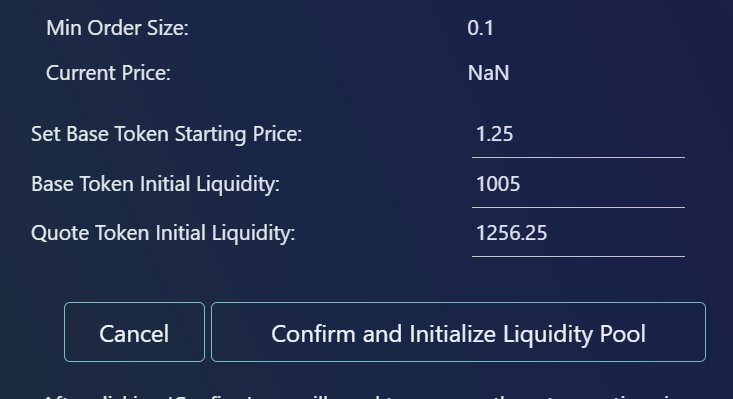
After clicking the button, you’ll need to confirm 2 transactions. Once that’s done, you’ll see the ID of our liquidity pool Token 2022 (so you can find it easily later) and the process is complete. Your liquidity pool on Solana is now live.
This liquidity pool will stay active on the same page we opened at the start of this second step.
Path 2: a single step with the Solana Liquidity Pool Creator
You can also create a liquidity pool on Solana in a single step using Smithii’s dApp. The interface looks something like this:
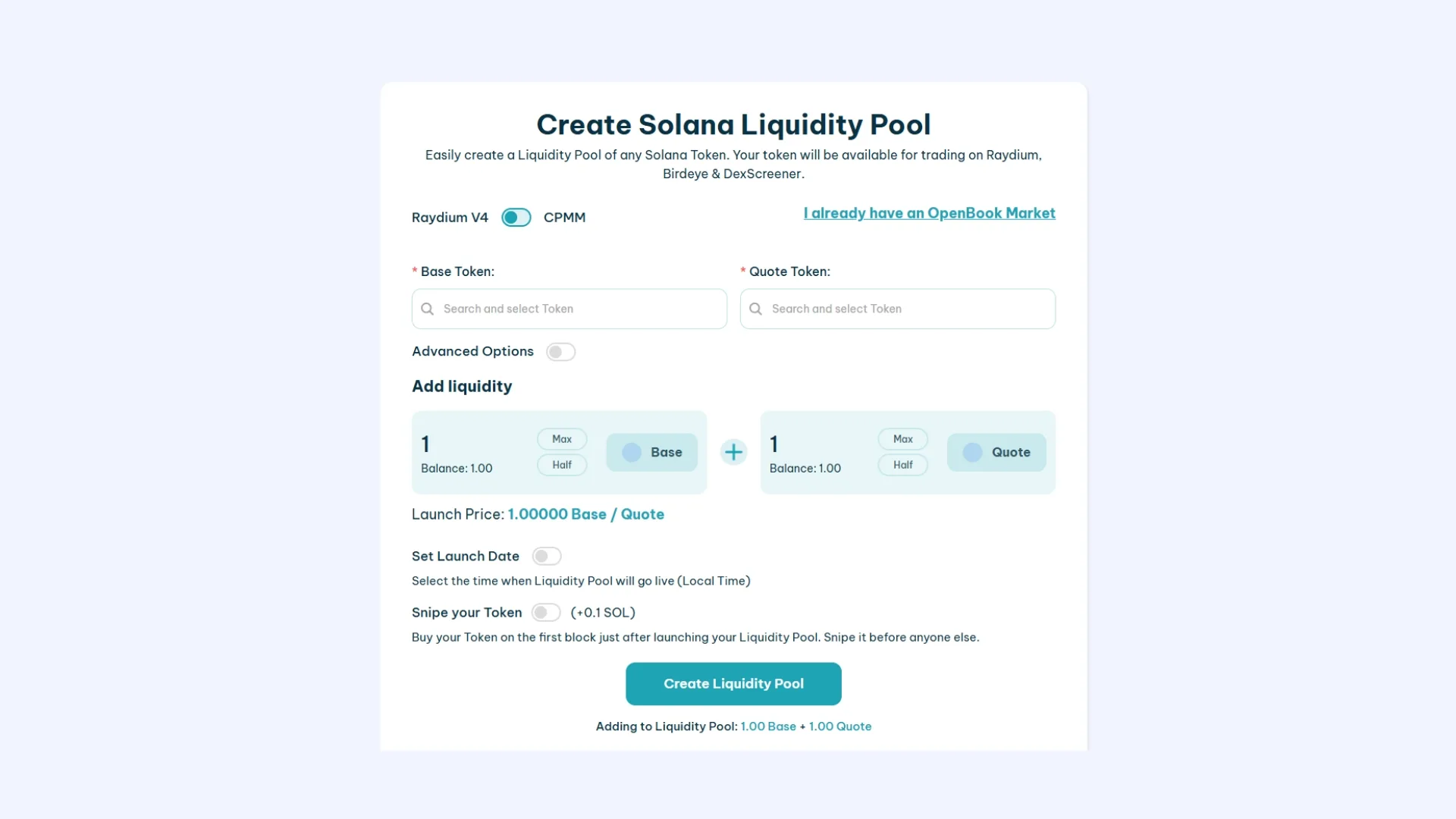
This tool lets us create our liquidity pool on Raydium with a user-friendly interface and starting from just 1 SOL (up to 3.5 SOL depending on the config you go with).
- Connect your wallet to use the tool.
- Select the “Base Token” (the token you created that doesn’t yet have market value)
- Set the advanced options: Event Queue Length, Request Queue Length and Orderbook Length (only if you want to use a cheaper Market ID, starting from 0.4 SOL)*
- Set the token amount and SOL/USDC you want to add.
- Set the launch date (optional)
- Click “Create Liquidity Pool” and approve the 3 transactions.
It’ll take a moment to finish, and then you’ll see the market ID and the liquidity pool address. Save them, since you may need these addresses down the line.
You can use this table as a reference for the Min Order Size and Tick Size if you want to create the OpenBook Market ID.

**Under “advanced options” we can adjust the size of our OpenBook Market. Here are the inputs you should use for 3 different sizes I’d recommend:
0.4 SOL:
- Event Queue Length: 128
- Request Queue Length: 63
- Orderbook Length: 201
1.5 SOL:
- Event Queue Length: 1400
- Request Queue Length: 63
- Orderbook Length: 450
2.8 SOL:
- Event Queue Length: 2978
- Request Queue Length: 63
- Orderbook Length: 909
Si quieres Listar tu Token en Jupiter Exchange aquí te explicamos cómo agregar un Token a Jupiter.
FAQ on Token-2022 and liquidity pools on Solana
What’s the difference between Token-2022 and a standard SPL Token?
The classic SPL Token only supports basic functions (mint, transfer, burn). Token-2022 is the extended version of the SPL Token program and ships with token extensions: Transfer Tax, Permanent Delegate, Interest Bearing Rate, Non-Transferable, Default Account State, and more. If your token uses any of those features, it’s Token-2022.
Why do I need to revoke freeze authority before creating the pool?
Raydium requires the freeze authority to be revoked before it will accept a Token-2022 in a pool. If you keep the freeze authority, you can freeze holder wallets at will, which is an obvious red flag for any buyer. Revoking freeze authority (0.2 SOL with the Smithii tool) locks the supply as final and unlocks pool creation.
Is creating a pool for Token-2022 more expensive than for a standard SPL Token?
The Market cost and rent on Solana are the same (it depends on Market size, from 0.4 SOL up to 2.8 SOL). What Token-2022 adds is the extra step of revoking freeze authority if you didn’t do it when creating the token. All in, the 1-step flow with Smithii lands between 1 and 3.5 SOL depending on configuration.
Does Transfer Tax work when trading on Raydium?
Yes. Swaps routed through the Raydium pool execute Token-2022 transfers, and if the Transfer Tax extension is active, the fee accrues to the matching token account. You can withdraw those fees using the withdraw authority you set when creating the token.
Can I use the Solana Liquidity Pool Creator for standard SPL Tokens too?
Yes. The same tool works for classic SPL Token and for Token-2022. The setup flow (Base Token, Quote Token, Min Order Size, Tick Size) is identical; the only thing that changes is the internal standard of the token, which the tool detects automatically.
Don’t launch your liquidity pool without knowing this!
Get the 5 secrets the big players use to launch a liquidity pool


Crypto writer focused on the Web3 space. Former contributor to the Smithii editorial team.